Free · browser-based · nothing to install
Make a Minecraft skin in your browser.
PixelPelt is a free Minecraft skin editor and skin maker: paint straight onto a 3D character or the flat 64×64 layout, pick classic or slim arms, and download a PNG. No signup, nothing to install, and your artwork never leaves this page.
Skin, face, shirt and trousers.
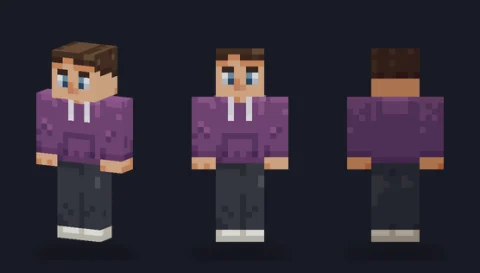
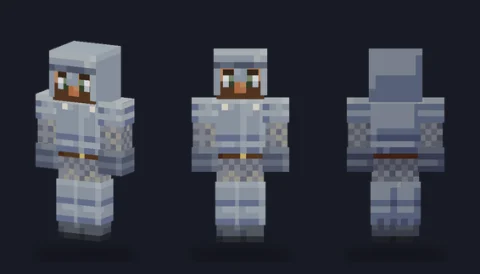
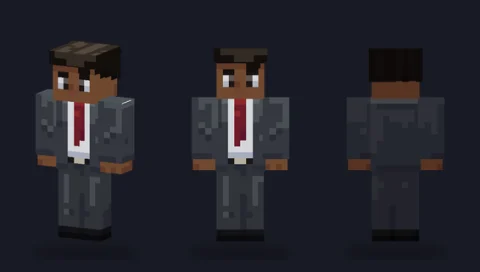
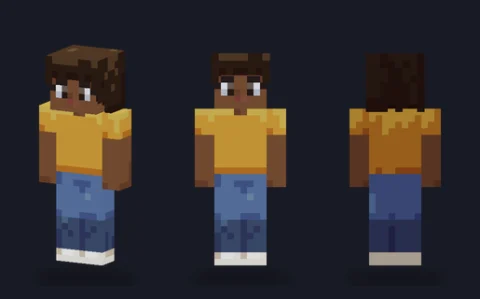
Starters are drawn by PixelPelt. Undo brings your last skin back. More starting points: 59 free skin bases.
Or drop a PNG anywhere on the editor. Old 64×32 skins are converted to 64×64.
Paint straight onto the 3D model, or switch to Sheet for the flat 64×64 layout the game wraps around the character. Both edit the same skin. Paint the base layer first, then the overlay for hats, jackets and sleeves. Hide body parts to reach inner faces. Keys: P E B I pencil, eraser, fill, pick · X/Z lighten/darken · V vary shade · M mirror · L layer · G grid · U/R or Ctrl/⌘+Z undo/redo · + − zoom. In the sheet, arrows move the cursor and Enter paints.
Start from a base
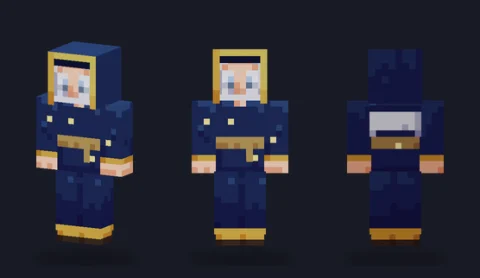
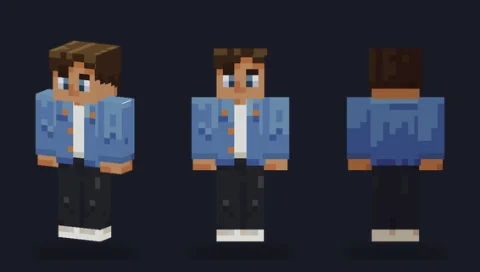
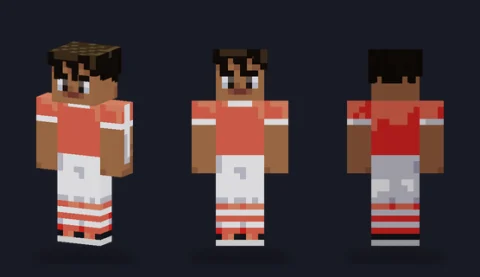
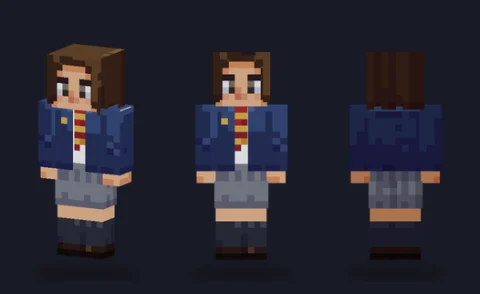
all 59 skin bases →Fifty-nine original skins we drew to be built on, in classic and slim. Press Edit and one opens in the full editor, ready to recolour.


What the editor does
Your artwork stays in your browser — PixelPelt has no accounts and never uploads your skin.
Design guides
all guides →AI Minecraft Skin Generators Tested: 5 Tools, Real Outputs, and How to Fix Them
We ran free AI Minecraft skin generators on 10 Oct 2026, measured every file they produced, and cleaned one up in the editor.
30 Minecraft Skin Ideas With Colour Palettes and Difficulty Scores
30 original Minecraft skin ideas in six themes, each with a hex colour palette, its hook, an overlay trick and a computed difficulty score.
HD vs Standard Minecraft Skins: A Designer's Take
128×128 HD skins promise more detail, but do they read better? The honest trade-offs, what platforms support them, and when 64×64 is the smarter choice.
Using Transparent Pixels in Minecraft Skins
Which layer can be see-through and which cannot, why the base body is always solid, and how to use the overlay's transparency for hair, hats and effects.
How to Make a Matching Minecraft Skin Set
Design skins that clearly belong together — for a couple, friends or a team — using a shared palette, a common motif and small differences that read.
10 Common Minecraft Skin Design Mistakes
The mistakes that make a skin look unfinished — grey side faces, shading with black, detail too small to read — and the quick fix for each.
A skin editor, not a skin uploader
PixelPelt does one thing well: it helps you design a skin. Paint on the character above, or open the full Minecraft skin editor page, which explains every tool. When your 64×64 PNG is ready, our guides hand you off to plain-English steps for uploading it on Java, Bedrock or console — we would rather do the drawing part properly than pad the page with steps that go stale.
Everything stays on your device
There is no account and no server that sees your work. The editor runs in your browser, the PNG is generated locally when you press download, and that download is the only copy that ever leaves the page. The one optional request is Load by player name, which sends the name you type, never your artwork, to fetch that player's public skin.
Learn the craft, not just the buttons
A tool only gets you so far — the design guides cover the part that decides whether a skin looks sharp. Start with making a skin from scratch, then read what makes a good skin read well. Both pair directly with the editor above.
Frequently asked questions
Is the PixelPelt Minecraft skin editor free?
Yes. The editor is completely free, needs no account, and runs entirely in your browser. There is nothing to install and no watermark on what you make — you paint a skin, preview it, and download the PNG.
Does my skin get uploaded anywhere?
No. Every pixel you paint stays in your own browser. PixelPelt has no server that receives your artwork and no login, so the skin you make is only saved when you click Download PNG and it lands in your own downloads folder.
What size skin does the editor make?
It edits the standard 64×64 skin layout used by current Minecraft (Java and Bedrock), with both the base layer and the second overlay layer for hats and jackets. The file you download is a 64×64 PNG, which is exactly what the game expects.
Can I edit a skin I already have?
Yes. Use Import PNG to load any 64×64 skin file you own and keep editing it. Legacy 64×32 skins and higher-resolution PNGs are fitted onto the 64×64 grid when they load, so you can start from an existing design instead of a blank canvas.
How do I put the finished skin into Minecraft?
Download the PNG, then upload it on your account or in the launcher — the exact steps differ between Java, Bedrock and console. This site focuses on designing the skin; our guides link to plain-English, step-by-step upload instructions for each platform.