How to Make a Minecraft Skin (2026): From Blank Template to Upload
To make a Minecraft skin, you paint a 64×64 PNG in a skin editor, one region at a time: skin tone first, then clothes, shading, hair and face, and finally the overlay layer for hats and hoods. Then you download the PNG and upload it in the Minecraft Launcher on Java, or import it in the Dressing Room on Bedrock. A simple first skin takes fifteen to thirty minutes in a free browser editor, and you do not need to be good at art.
This guide walks the whole route from a blank grid to wearing the skin in game, with an annotated map of the template, a worked example drawn step by step, and the 2026 upload paths for both editions. Open the free skin editor in another tab and follow along.
What you need, and the 64×64 map
You need three things: a skin editor, about half an hour, and one sentence describing your character. Any editor that exports a 64×64 PNG will do; ours runs in the browser, needs no account and never uploads your file. The sentence matters more than it sounds. "A traveller in a green hooded coat" decides your colours, your signature shape and where the detail goes before you paint a pixel.
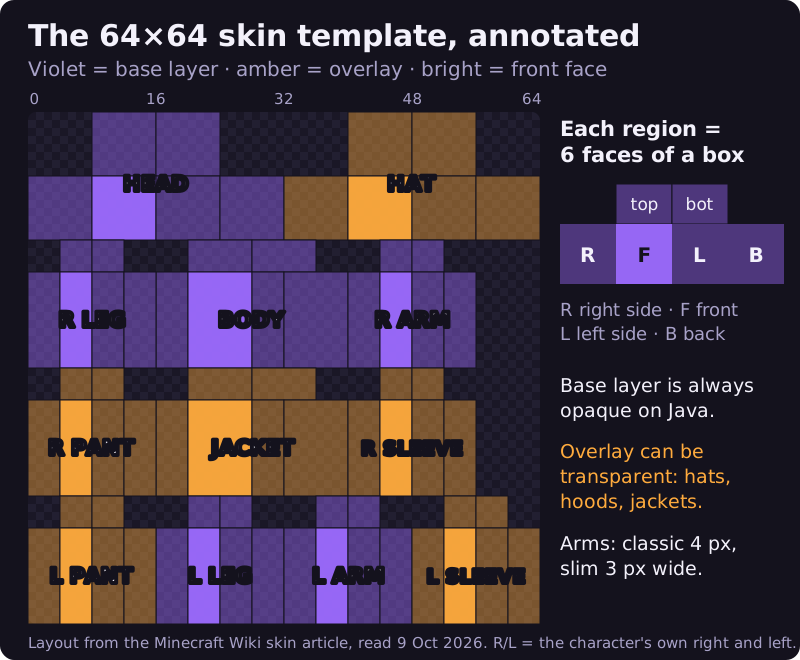
The skin file itself is a flat map of a blocky character, folded out like a cardboard box. Each body part is a box with six faces, and each box appears twice: once on the base layer and once on the overlay layer, which sits slightly outside the body for hats, hoods and jackets. Once you can read this map, every other step is filling in shapes.
| # | Property | Java Edition | Bedrock Edition |
|---|---|---|---|
| #1 | File | PNG, 64×64 (legacy 64×32 still accepted) | PNG, 64×64; 128×128 also accepted |
| #2 | Arm width | Classic 4 px, slim 3 px | Wide 4 px, slim 3 px |
| #3 | Layers | Base + overlay | Base + overlay |
| #4 | Transparency | Overlay only; base forced opaque | Very faint pixels on either layer are invisible |
| #5 | Where to change it | Launcher Skins tab or minecraft.net profile | Dressing Room, Classic Skins |
Two numbers explain most beginner confusion. The "right arm" on the map is the character's right, which appears on your left when you look at the front. And the arms are four pixels wide on the classic model but three on the slim one, so decide which model you are drawing for before you paint sleeves. Our guide to skin template goes face by face, with labelled downloads, if you want the full coordinates.
Step 1: open the editor and pick a base
In the skin editor, you start with a simple original character so the screen is never empty. Press Clear for a transparent grid, or Reset to bring the starter back if you get lost. Tick Show outlines & labels: the editor draws an outline around each face and names it, so you always know whether you are painting the front of the head or the back of a leg.
You can also start from a base. Our 59 free skin bases open straight in the editor in either arm model, and Import PNG loads any 64×64 file, including one you made earlier. Starting from a base is faster; starting from scratch is the best way to learn the map. Either way, keep painting on the base layer for now.
Step 2: skin tone and shading
Skin tone is the foundation, so fill it first: pick a colour, choose the Fill tool and click the head, both arms, both legs and the body. Painting tone everywhere, even where clothes will cover it, means any gap you leave later shows skin rather than an ugly hole.
Now give it form. Add one slightly darker version of the tone to the right side and back faces of the head and limbs, and one slightly lighter version on the top of the head. Two extra shades are enough at this size. The trick is consistency: pick a light direction, keep it the same on every part, and use the Pick tool to grab colours you have already placed instead of mixing new ones. Our shading and colour tips cover building a full palette.
Step 3: block in the clothes
Clothes are the biggest areas, so block them in with Fill. Paint the body as a shirt or coat, the top two thirds of each arm as sleeves, and the legs as trousers, leaving the lowest three or four rows of each arm as hands and the bottom rows of the legs for shoes or boots. Paint every face of each part, not just the front; a sleeve that is only coloured on the front leaves bare sides that show the moment the character turns.
Then shade the clothes the same way you shaded the skin: one darker version on the right and back faces. A single darker column down the middle of the torso front reads as a zip or a coat opening, and one dark row across the waist reads as a belt. Details like these cost two clicks and make a flat shirt look made.
Step 4: hair, then the face
Hair goes before the face because it frames it. Paint the top and back of the head in your hair colour, bring a fringe down over the top one or two rows of the front face, and continue the hair a pixel or two onto the side faces so the head is not bald from an angle.
For the face, turn on Mirror left ↔ right so whatever you paint on one side appears on the other. A classic eye is two pixels: a white and a coloured iris side by side, placed on the fifth row of the face. A mouth is one or two pixels of a darker skin tone two rows below. Resist adding more. At the size other players see you, a clean two-pixel eye reads better than a detailed four-pixel one.
Step 5: add character on the overlay layer
Switch the Layer control to Overlay. Everything you paint now goes on the second skin, which is half a pixel larger than the body and limbs and a full pixel larger around the head, so it sits just outside them. This is where hats, hoods, glasses, jacket collars and big hair live. The overlay can be transparent, so you paint only the pieces you want and leave the rest empty, which is how a hood frames a face that shows through it.
On Java, only the overlay can be see-through; any transparent pixel on the base layer is forced solid, so never try to cut holes in the base. Our guide to transparent pixels explains the rule and the Bedrock difference. One or two overlay pieces are usually enough; a hat, a scarf, goggles and a backpack strap all at once turn into noise.
Step 6: check it in the preview and export
Before you download, look at the front and back previews beside the canvas, not the zoomed grid. That small view is close to how other players will see your character. If a shape disappears, make it bolder. If the whole skin looks flat, add contrast between the face and the clothes. Check the back and the top of the head too; they are the faces people forget.
When it looks right, press Download PNG. The file is a true 64×64 PNG with transparency kept, exactly what the game expects. There is no autosave and no cloud copy, so keep that file safe and give it a name you will recognise; you can import it later to make changes or variants.
Step 7: upload it on Java and Bedrock
Getting the PNG into the game takes a minute, and the route depends on your edition. These paths come from the Minecraft Wiki's skin article, read on 9 October 2026; menu names occasionally change between updates.
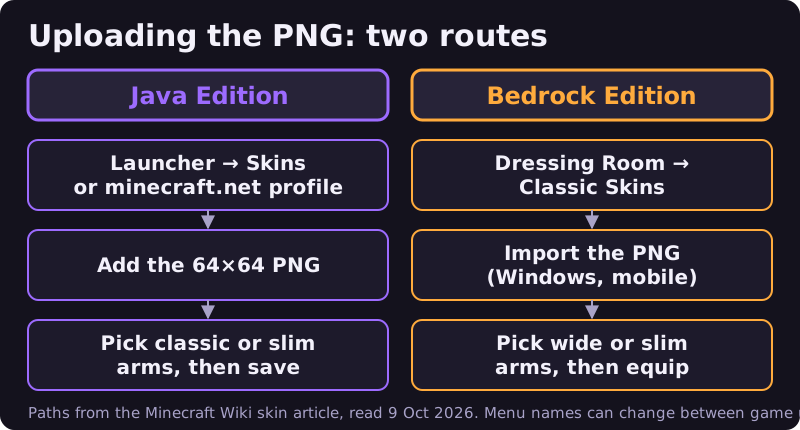
On Java Edition, open the Minecraft Launcher, go to the Skins tab, add a new skin, choose your PNG and pick classic or slim arms to match how you painted them. You can do the same on your profile page at minecraft.net. Only players who own Java Edition can change their skin.
On Bedrock Edition, start at the main menu, enter the Dressing Room, switch to the Classic Skins section and pick your PNG with its import option, then choose wide or slim arms. The wiki lists custom import on Windows and mobile; on consoles, look for the same option in the Dressing Room before assuming it is there. According to the wiki, imported custom skins are only fully visible to players who have switched off the "Only Allow Trusted Skins" setting. For the full export walkthrough, see exporting and uploading your skin.
Worked example: a hooded explorer
Here is the whole method applied to one character, drawn for this guide with the steps above. The one-line idea was "a traveller in a green hooded coat", which settled the palette straight away: a warm tan skin tone, a forest-green coat, earthy brown trousers, dark boots and brown hair.
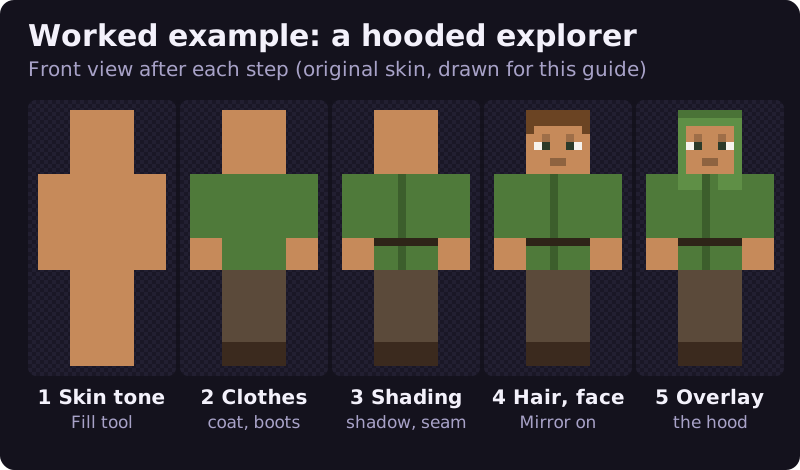
Steps 1 and 2 are pure Fill tool: tone everywhere, then coat, trousers and boots wrapped around every face. Step 3 adds one darker green on the shadow side, a single darker column for the coat opening and a dark belt row. Step 4 is the hair and a mirrored face, two pixels per eye. Step 5 is what makes the character: a hood painted on the overlay head, a drape over the shoulders on the overlay jacket, and the front of the hood left empty so the face shows through.
Notice what is missing. There is no texture noise, no outline around the body and no detail smaller than one clear pixel. Almost every colour on it is one of five base colours or a darker version of one, and it still reads as a specific person from across a server lobby, because the sentence picked one strong feature, the hood, and everything else stayed quiet.
Mistakes to avoid on your first skin
- Painting only the front. Turn the preview round; grey or bare side faces are the quickest giveaway of a first skin.
- Shading with black. Use a darker version of the same colour; black flattens everything.
- Holes in the base layer. On Java they turn solid. Put anything see-through on the overlay.
- The wrong arm model at upload. Slim art on classic arms looks padded; classic art on slim arms loses its outer column.
- Resizing the PNG. Opening the file in a photo app and re-saving can blur or resize it; upload the editor's file untouched.
When your first skin is done, the quickest way to a second is to import the one you just made and change only the hair, the face and one piece of clothing. If you want a library of characters, our matching skin set guide shows how to build several from one file. And if you would rather buy a finished skin pack, the Minecraft Marketplace sells them for Minecoins; that is an affiliate link.
Frequently asked questions
How do I make my own Minecraft skin for free?
Open a free browser skin editor, paint the 64×64 template one region at a time, download the PNG and upload it in the Minecraft Launcher (Java) or the Dressing Room (Bedrock). No account or payment is needed to make the file.
What size is a Minecraft skin?
A 64×64 pixel PNG. Java also accepts the old 64×32 format, and Bedrock also accepts 128×128 skins.
How do you make a Minecraft skin on Bedrock or Pocket Edition?
Make the PNG in any skin editor, then import it from the Classic Skins section of the Dressing Room. The Minecraft Wiki lists the import option on Windows and mobile.
How do I upload a custom skin to Minecraft Java?
Open the Minecraft Launcher's Skins tab, or your profile page on minecraft.net, add the PNG and choose classic or slim arms. You need to own Java Edition to change your skin.
Can you make a Minecraft skin on Xbox, PlayStation or Switch?
You can make the PNG on any device with a browser, but importing a custom PNG is listed for Windows and mobile versions of Bedrock. On consoles, check the Dressing Room for an import option before relying on it.
Ready to try it? Open the free Minecraft skin editor and paint along.