Free download · 64×64 · classic and slim
Minecraft skin template
A Minecraft skin is a 64×64 PNG, but the square is not a picture of a character: it is a set of unwrapped boxes, one small rectangle for each side of the head, body, arms and legs. These templates map every one of them, for both arm widths. Download one, or open it straight in the editor and paint over it.
- Classic template64×64 PNG · 4 px arms · colour-coded base layerDownload PNG ↓
- Slim template64×64 PNG · 3 px arms · colour-coded base layerDownload PNG ↓
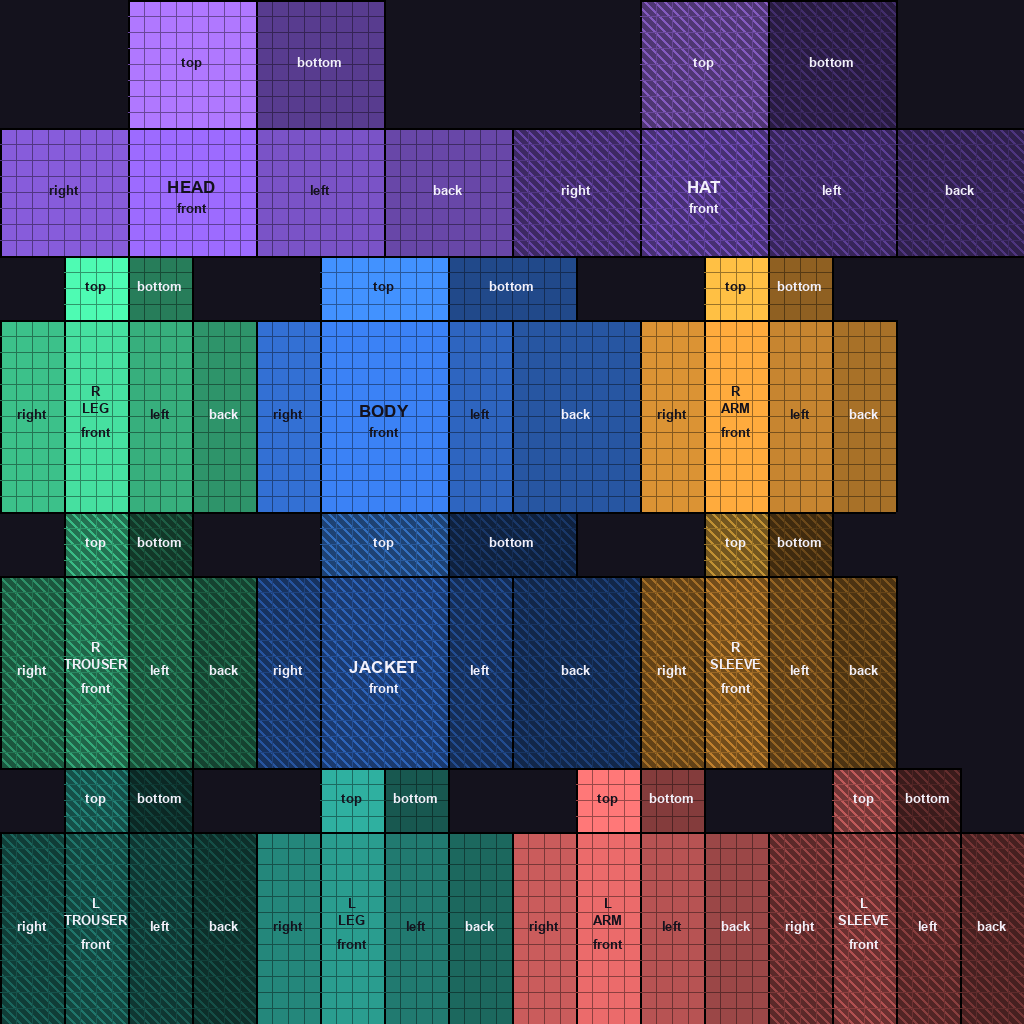
- Labelled guide, classic1024×1024 PNG · every face named · print or keep openDownload PNG ↓
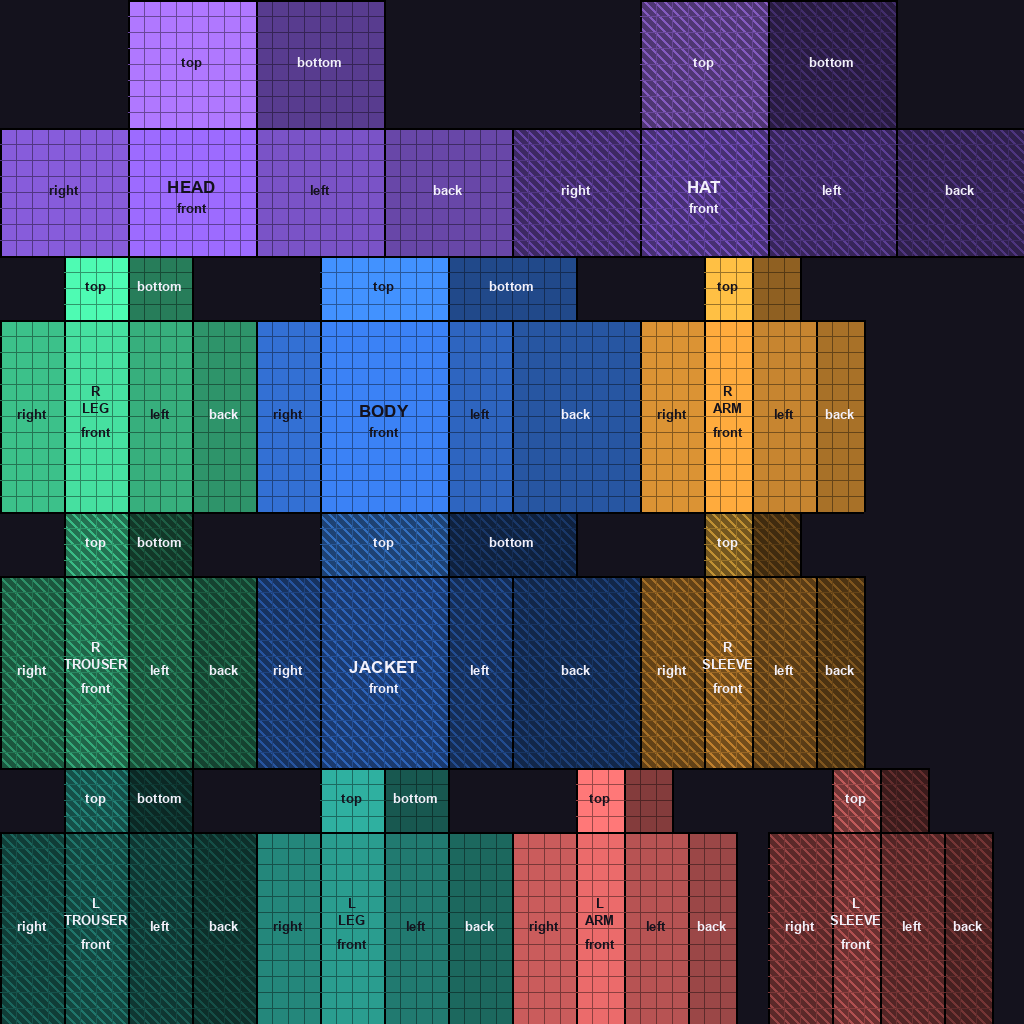
- Labelled guide, slim1024×1024 PNG · every face named · print or keep openDownload PNG ↓


What 64×64 means
64×64 is the width and height of the texture in pixels: 4,096 tiny squares in all. Every one that belongs to the layout maps to a specific face of the character, so nothing on the canvas is decorative filler; each pixel is a block on the model. The corners that belong to no face are simply ignored by the game.
Because the grid is small, resolution is not the problem; clarity is. A body part is only eight or four pixels across, which is why bold shapes beat fine detail. Think of yourself as placing blocks, not brushing paint.
Where each body part sits
Each body part is a box, and each box is unwrapped the same way: the top and bottom faces sit in a row above, and the right, front, left and back faces run left to right underneath. "Right" and "left" are the character's own right and left, so the right arm is the one on your left when the character faces you. Coordinates below count from 0 at the top-left pixel.
| Part | Base area | Front face | Outer layer | Outer area |
|---|---|---|---|---|
| Head | 0,0 → 31,15 | 8,8 → 15,15 (8×8) | Hat | 32,0 → 63,15 |
| Body | 16,16 → 39,31 | 20,20 → 27,31 (8×12) | Jacket | 16,32 → 39,47 |
| Right arm | 40,16 → 55,31 | 44,20 → 47,31 (4×12) | Right sleeve | 40,32 → 55,47 |
| Left arm | 32,48 → 47,63 | 36,52 → 39,63 (4×12) | Left sleeve | 48,48 → 63,63 |
| Right leg | 0,16 → 15,31 | 4,20 → 7,31 (4×12) | Right trouser | 0,32 → 15,47 |
| Left leg | 16,48 → 31,63 | 20,52 → 23,63 (4×12) | Left trouser | 0,48 → 15,63 |
On the slim model only the arms change. Each arm is one pixel narrower, so its front and back faces are 3 pixels wide instead of 4 and the faces after them shift one column left:
| Arm | Classic front face | Slim front face | Classic area | Slim area |
|---|---|---|---|---|
| Right arm | 44,20 → 47,31 (4×12) | 44,20 → 46,31 (3×12) | 40,16 → 55,31 | 40,16 → 53,31 |
| Right sleeve | 44,36 → 47,47 (4×12) | 44,36 → 46,47 (3×12) | 40,32 → 55,47 | 40,32 → 53,47 |
| Left arm | 36,52 → 39,63 (4×12) | 36,52 → 38,63 (3×12) | 32,48 → 47,63 | 32,48 → 45,63 |
| Left sleeve | 52,52 → 55,63 (4×12) | 52,52 → 54,63 (3×12) | 48,48 → 63,63 | 48,48 → 61,63 |
That shift is why a skin drawn for one model shows a stripe down the arms on the other: each arm picks up a column from the neighbouring face. Our slim versus classic guide covers how to plan sleeves for each.
The head: six faces in the top-left
The head is a cube eight pixels along every edge, which makes all six of its faces 8×8 squares, and they sit together in the top-left of the texture. The front face, the one with the eyes, sits just below the two squares used for the top and bottom of the head; the right, left and back faces run along the same row. Painting the face onto the wrong square is the classic first-skin mistake, and it is why on-canvas guides help so much.
Remember that the top and bottom faces exist. Hair needs painting on the top face, not just the front and back, or the character looks bald from above, which is how other players see you in third-person view.
Body, arms and legs
The torso is 8 pixels wide, 12 tall and 4 deep, so its front and back are 8×12 and its sides 4×12. Each leg, and each classic arm, is a 4×12 column with four side faces plus a 4×4 top and bottom. A limb is therefore four separate stripes on the texture (right, front, left, back), and a design only wraps correctly if you paint all four. Miss one and you get a seam down the character.
The easiest way to learn this is to paint with guides on. In the skin editor you can paint straight onto the 3D model and switch to the flat sheet whenever you want to see where a stroke landed, so the map sinks in by use rather than memorising.
The second layer sits on top
Half of the 64×64 grid is the outer layer, also called the overlay: a second skin drawn just outside the body. It is slightly larger than the base (half a pixel bigger in total on the body, arms and legs, and a full pixel bigger on the head), which is why a hat on the outer layer floats just proud of the skull instead of clipping into it. Its faces repeat the base faces in their own areas of the sheet: the hat to the right of the head; the right trouser leg, jacket and right sleeve in the band below the body; and the left trouser leg and left sleeve in the bottom strip.
Treat the outer layer as the accessories pass: hats, hair volume, glasses, jackets and armour trim all live there. It is optional, and pixels you leave empty there are see-through. Only the outer layer supports transparency; in Java the base layer is always drawn solid. Our guide to transparent pixels goes further.
Old 64×32 skins and HD skins
The older 64×32 format, from before the 2014 update that introduced the current layout, is half as tall. It still loads, but it has no separate left arm or left leg (the game mirrors the right ones) and only one outer area, the hat. New skins should always be 64×64; the editor converts old 64×32 files to 64×64 when you import them.
HD skins at 128×128 or larger exist. On Java they need a mod, while Bedrock accepts higher-resolution skins directly. For most skins, stay at 64×64: you gain compatibility and lose almost nothing, because the model is chunky by design. Our HD versus standard guide weighs it up.
Finding a face fast
Work from the character outward: the head group is top-left, the body plus the right arm and right leg fill the middle band, and the left arm and left leg sit in the bottom strip that the old 64×32 format never had. Within each group, the front face is the one you will edit most, and it is always flanked by the two side faces on the same row, with the top and bottom faces stacked just above.
Name the face out loud as you paint: "front of body", "right side of the right leg". Most layout mistakes come from painting the back when you meant the front, or the left arm when you meant the right, because on the flat sheet they look interchangeable. The right and left limbs are separate regions, so a pattern on one does not appear on the other; a symmetrical design has to be painted on both, which is what a mirror tool automates.
Why the layout is shaped like this
Each body part is a box, and unwrapping a box onto a flat sheet is exactly what a papercraft net does. That is why the texture looks like a scattering of rectangles rather than a drawing of a person. Game engines call this kind of unwrap a UV map, and a Minecraft skin is simply an unusually readable one. Once the flat image reads as folded boxes, not a picture, skin design clicks.
How to use the template
- Pick classic or slim. If you are not sure, classic is the safer default.
- Open the template in the editor with the button above, or download the PNG and use Import PNG in any editor.
- Paint over each colour block. The colours tell you which part you are on; the labelled guide tells you which face.
- Add hats, jackets and sleeves on the outer layer last.
- Download your PNG and upload it, choosing the same arm model.
Would rather not start from blocks of colour? Our 59 free skin bases are finished bodies and outfits in both arm widths, ready to change.
Licence
We generated these templates from the layout table ourselves. Use them for anything, including skins you sell or give away, without asking and without credit.
Frequently asked questions
What size is a Minecraft skin template?
64×64 pixels, saved as a PNG. That is the size both Java and Bedrock use. The older 64×32 format still loads in Java but has no separate left arm, left leg or outer body layers.
What is the difference between the classic and slim templates?
Only the arms. Classic arms are 4 pixels wide and slim arms are 3, so the arm faces sit in slightly different places on the sheet. Heads, bodies and legs are identical.
Can I upload the template as a skin?
Yes. The colour-coded template is a valid skin, so you can upload it to check the layout in game. It just looks like a colour-blocked mannequin until you paint it.
Why does my skin have grey or missing patches?
You almost certainly painted only the front of a body part. Every limb has four side faces plus a top and a bottom; paint all of them so the colour wraps around.
Is a 64×64 skin the same on Java and Bedrock?
Yes. The 64×64 layout and PNG format are shared. Bedrock also accepts larger HD skins, but a 64×64 file works on both.
Can I use these templates for anything?
Yes. We drew them ourselves; use, share and sell what you make with them, with no credit needed.