AI Minecraft Skin Generators Tested: 5 Tools, Real Outputs, and How to Fix Them
The best free AI Minecraft skin generator we could actually run on 10 Oct 2026 was a public Hugging Face Space built on Monadical's open model: type a description and it returns a real skin file that follows the prompt surprisingly well. We tried five generators; only two produced a skin without an account, and neither gave us a file we would upload without cleaning it up first.
Use an AI generator if you want a starting sketch for a character in under a minute. Skip it if you want a tidy, ready-to-wear skin: every AI skin we downloaded used between 972 and 1,628 different colours on the body, where our hand-drawn bases use 8, and one tool's files arrive with a solid black overlay that hides the whole character in game.
The short verdict
| # | Tool | Input | Account needed? | What we got | Free allowance |
|---|---|---|---|---|---|
| #1 | Hugging Face Space (Monadical model) | Text prompt | No | 3 skins, 64×32 legacy PNG | Shared GPU time: 2 min a day without an account |
| #2 | MC Skin Creator | None (random) | No | 6 skins, 64×64 PNG | No limit stated; runs in your browser |
| #3 | skingenerator.io | Text prompt | Yes (sign-in) | Not tested | 5 free generations, then paid packs |
| #4 | Felo AI agent | Text or photo | Yes, in practice | Not tested | Page says free, no signup |
| #5 | Generator listed on There's An AI For That | Text prompt | Unknown | Not tested | Unknown |
The Hugging Face Space is the one to try first because, of the five, it is the only free, no-account tool that listens to what you type. MC Skin Creator is fun for random inspiration but gives you no say in the result, and its files need the overlay removed before they are wearable. skingenerator.io is made by the same studio that released the open model, but it requires a sign-in, so we did not test its newer models. Felo's page advertises no signup, yet submitting a prompt opened a log-in window, and the There's An AI For That page stopped our test browser at a security check.
How we tested (prompts, date)
All tests ran on 10 Oct 2026 from a desktop browser or the tool's public web interface, without signing in anywhere. On the Hugging Face Space we used its defaults: the SDXL model, 25 steps, guidance 7.5 and seed 42. We planned three prompts:
- a knight in silver armour with a red cape
- a girl with long purple hair wearing a green hoodie and blue jeans
- a robot made of copper with glowing blue eyes
The knight prompt ran twice, the hoodie prompt once, and then the Space returned errors. Hugging Face's documentation explains why: visitors without an account get 2 minutes of shared GPU time a day (5 minutes with a free account), and the allowance resets 24 hours after first use. Three skins used ours, so the robot prompt never ran. MC Skin Creator has no prompt box at all, so we generated three random skins with each of its two models, v3 and v5.
We then measured every downloaded PNG with a short script that knows the skin layout: the file size in pixels, how many different colours sit on the base layer, and how many overlay pixels are filled and with what. Prompt match, faces and overall look were judged by eye; everything else was counted.
Results side by side
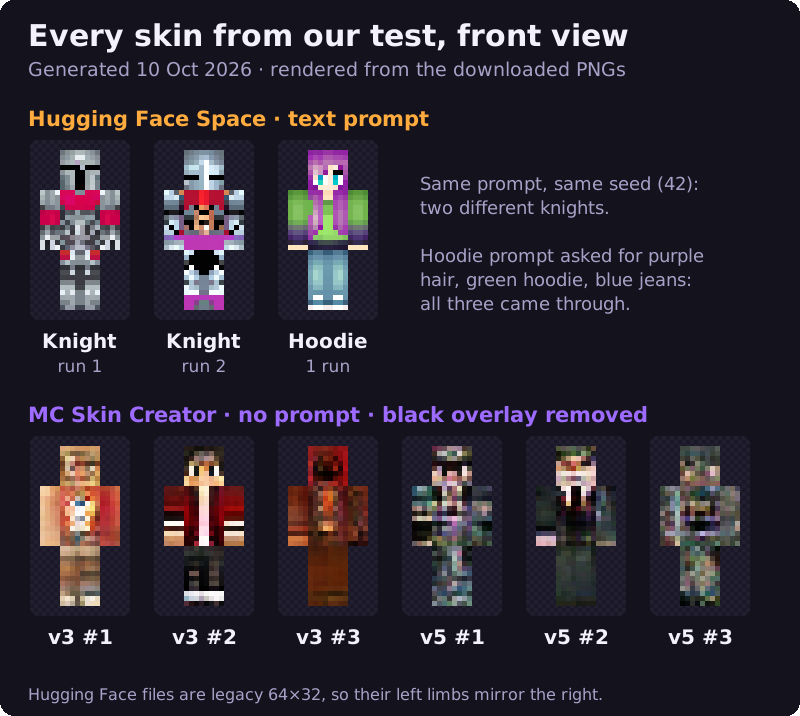
The Hugging Face Space followed both prompts it ran. The hoodie prompt produced long purple hair, a green hoodie and blue jeans, with a readable face; the knight prompt produced silver plate with red across the chest. The surprise was the repeat run: the same prompt and the same seed gave a visibly different knight, with 57% of pixels changed noticeably, so don't count on a seed to get a favourite result back.
MC Skin Creator's six skins are random people and creatures. Model v3 produced recognisable figures, including a dark-haired character in a red jacket; model v5 produced busier, muddier textures in all three runs. Neither model accepts a description, so you keep clicking until something appeals.
| # | Output | File format | Overlay | Colours on base layer |
|---|---|---|---|---|
| #1 | Hugging Face, knight run 1 | 64×32 (legacy) | Hat only, partly filled | 1,060 |
| #2 | Hugging Face, knight run 2 | 64×32 (legacy) | Hat only, partly filled | 972 |
| #3 | Hugging Face, hoodie | 64×32 (legacy) | Hat only, partly filled | 1,096 |
| #4 | MC Skin Creator v3 (3 skins) | 64×64 | Every pixel filled, mostly black | 1,595–1,628 |
| #5 | MC Skin Creator v5 (3 skins) | 64×64 | Every pixel filled, mostly black | 1,607–1,619 |
Common AI-skin errors
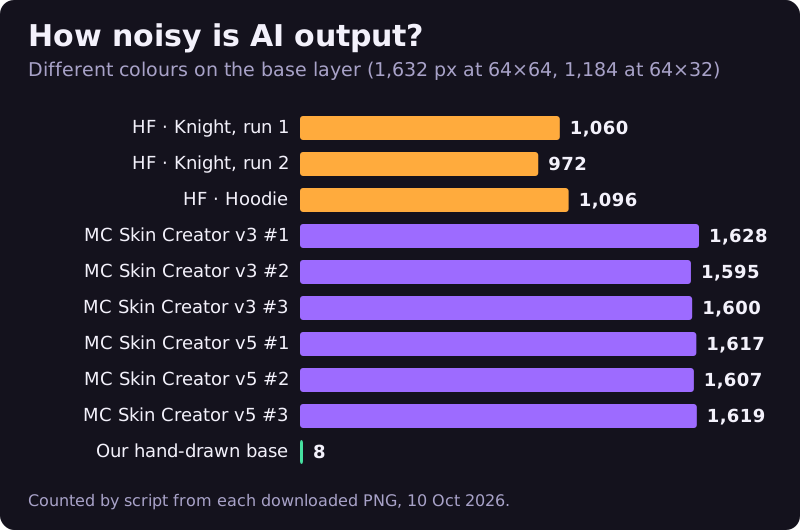
Four problems showed up across our files, and they are the things to check before you upload any AI skin:
- Noise. An image model paints in soft gradients, so nearly every pixel gets its own shade. MC Skin Creator's skins used 1,595 to 1,628 colours across 1,632 body pixels, close to one colour per pixel. Up close in game this reads as grain.
- A solid overlay. MC Skin Creator fills the whole overlay with opaque pixels, nearly all black. The overlay is drawn on top of the body, so with skin layers switched on the character wears a black shell; the tool's own page says you may need to turn overlay layers off.
- The legacy format. The Hugging Face Space returns 64×32 files, the half-height layout from before separate left limbs and outer jacket layers existed. Java Edition still accepts it, per the Minecraft Wiki, but both arms and both legs will be identical.
- Weak faces. The 8×8 face is where AI output is least reliable: of our nine skins, only the hoodie skin and one MC Skin Creator v3 skin had clear eyes; the rest ranged from a helmet visor to a smudge.
None of our files had see-through pixels on the base layer, which is good: Java draws the base layer solid regardless. The unused corners of the files were filled with colour too, but the game ignores those areas, so they do no harm.
Free tiers and licences
What "free" means differs a lot between these tools, and so does what you may do with the result. Here is what each one's own pages said when we read them on 10 Oct 2026:
| # | Tool | Free allowance | Paid | Who owns the skin |
|---|---|---|---|---|
| #1 | Hugging Face Space | 2 min GPU a day without an account, 5 min with a free one | PRO accounts get 8× the daily quota | Model licence: OpenRAIL; read it before commercial use |
| #2 | MC Skin Creator | No limit stated | None shown on the generator | Terms say you keep ownership of what you create; personal, non-commercial use of the service |
| #3 | skingenerator.io | 5 skin generations | $2.49 for 50, $4.99 for 125, $9.99 for 333 | Terms (last updated 11 Sep 2023) don't address generated skins directly |
Two cautions. MC Skin Creator's terms read as if written for a mobile app sold through the App Store, so how they apply to the website generator is unclear. And skingenerator.io's only licence wording covers "materials" on the site, for personal, non-commercial use; whether a skin you generate counts as one is not stated. If you plan to sell skins or a skin pack, ask the tool's maker in writing first, or draw your own.
Fixing an AI skin in the editor
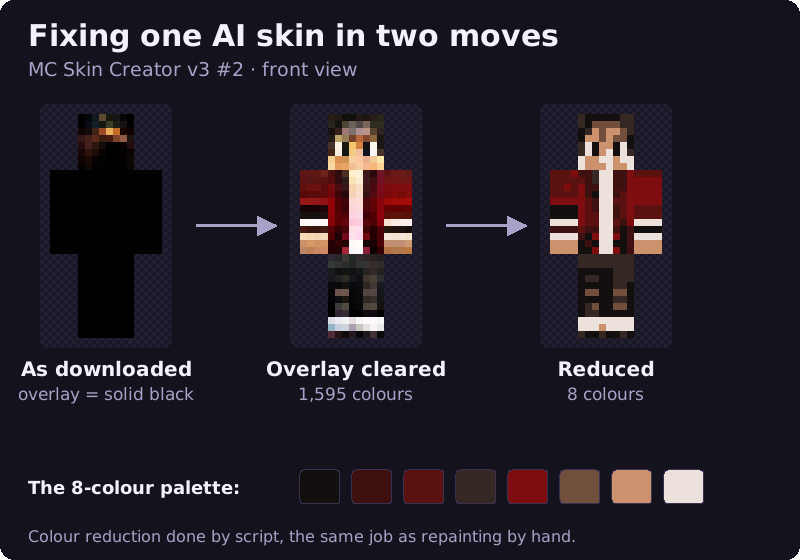
Treat the AI file as a colour sketch, not a finished skin. The AI has already chosen the outfit and colours; your job is to make them clean. In the skin editor:
- Import the PNG. Use Import PNG; 64×64 files load straight onto the grid.
- Clear the overlay. Switch to the overlay guides and erase the hat, jacket, sleeve and trouser areas if they are solid or noisy. Add overlay pieces back later on purpose.
- Pick a palette. Use the eyedropper on the AI image to choose 6 to 10 main colours (skin, hair, two or three clothing colours, a light and dark shade of each) and note their hex codes.
- Repaint face by face. Paint over each body face with the nearest palette colour, keeping one darker shade on the right side and back as the AI intended.
- Redraw the face. Give the 8×8 front of the head clear eyes and a mouth. This is the single biggest improvement.
- Export and upload, checking that the arms look right on the model you choose. Our exporting and uploading guide has the steps.
Our editor handles that legacy format: Import PNG converts a 64×32 file from the Hugging Face Space to the 64×64 layout the way the game does, creating the left arm and leg as mirror copies of the right ones, so repaint them if you want the two sides to differ. The shading and colour tips help when you reduce a noisy palette.
If after all that you would rather wear something made by a professional, the Minecraft Marketplace sells finished skin packs for Minecoins.
Edge cases
- Photo to skin: Felo advertises skins from your photo, and one Hugging Face Space we found converts a front-and-back character render into a skin. We didn't test either.
- Slim arms: the legacy 64×32 format predates the slim model, so Hugging Face output is classic-width. For any 64×64 AI skin, check the arms in a preview before choosing classic or slim at upload.
- Bedrock: Bedrock's custom-skin import accepts 64×64 files and also 128×128, per the Minecraft Wiki. We did not test a legacy 64×32 file there.
- Repeatability: a fixed seed did not reproduce the same skin on the Hugging Face Space. Download every result you like straight away.
Frequently asked questions
Is there a free AI Minecraft skin generator?
Yes. On 10 Oct 2026 a Hugging Face Space running Monadical's open model made skins from text with no account, within 2 minutes of shared GPU time a day, and MC Skin Creator made random skins for free.
Can AI make a Minecraft skin from a picture?
Some tools advertise it, including Felo, but we could not test that without an account. The free tools we ran worked from a text prompt or from nothing at all.
Are AI-generated Minecraft skins allowed?
The game accepts any valid 64×64 or legacy 64×32 PNG and doesn't ask how it was made. Sharing or selling one depends on the generator's terms and model licence.
How do I upload an AI-generated skin?
Download the PNG, fix the overlay and noise in a skin editor, then upload it through the Minecraft Launcher or minecraft.net on Java, or import it in Bedrock's Dressing Room.
Why does my AI skin look black or blurry in game?
Black usually means the tool filled the overlay layer with solid pixels; erase it. Blurry or grainy means hundreds of shades; reduce the palette to a few colours.
Ready to try it? Open the free Minecraft skin editor and paint along.