How to Save Your Minecraft Skin as a PNG (Java and Bedrock)
To save your current Minecraft skin as a PNG on Java Edition, load it by your player name in a skin editor and download it, or fetch the texture link from Mojang's official profile API. The game and launcher do not offer an export button we could document. For Bedrock Edition we found no export documented: if you imported a PNG, the original file is your copy, and a Character Creator look is built from items, so there is no PNG for it to save.
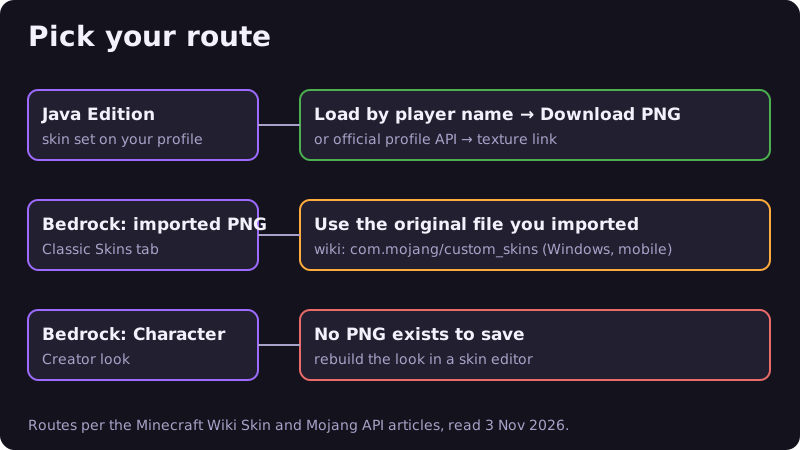
Java Edition: load it by name, then download
The fastest route uses the Load by player name box under the canvas in our skin editor. Type your Java username, press Load, and the editor fetches that player's public skin from a lookup service (mc-heads.net) and puts it on the 3D model. Nothing else leaves the page. Then press Download PNG at the top right.


Two things to know. Skins are public, so this works for any Java player name, not just yours; use it for your own skin or with permission. And older accounts can return the legacy 64×32 format: the public profile we tested on 5 November 2026 (jeb_) returned a 64×32 texture. Our editor converts those to 64×64 on load, so the file you download is the modern size.
Java Edition: the official API route
If you would rather not use any third-party service, the same PNG is available from Mojang directly. The Minecraft Wiki's Mojang API page documents two calls:
- Open api.minecraftservices.com/minecraft/profile/lookup/name/ followed by your username. The reply contains your id (UUID). Example with a public profile.
- Open sessionserver.mojang.com/session/minecraft/profile/ followed by that id. The reply holds a long Base64 value under textures. Example for the same public profile.
- Decode that value (any Base64 decoder works). Inside, textures.SKIN.url is a link on textures.minecraft.net; open it and save the image. If the decoded text has "model": "slim", your skin is set to slim arms.
We ran these steps on 5 November 2026 on that public profile and got a PNG back. It is slower than the editor, but every byte comes from Mojang's own servers. If there is no SKIN entry, the account uses a default skin and there is nothing custom to save.
Bedrock Edition: what you can and cannot save
We found no export button for the skin you are wearing in minecraft.net's skin guide or on the wiki, and we did not test a Bedrock device. What you can do depends on how you made the skin.
You imported a PNG. Custom skins go in through the Classic Skins tab of the Dressing Room on Windows and mobile, per the wiki's skin article, so the PNG you imported is still the original. Keep it. The wiki also names the com.mojang/custom_skins folder as the place custom skin files can be put by hand on those platforms; check there if you lost the original (we did not verify its contents on a device).
You built a look in the Character Creator. minecraft.net's skin guide describes it as building a character item by item, and the Character Creator FAQ says you can save five skins or created characters to your profile. That is a saved look, not a PNG, so there is no file to export. To get a PNG, rebuild the look in a skin editor: start from a skin base with the right skin tone and paint the outfit on top.
You bought a Marketplace skin. We found no official way to save it as a PNG, so we do not describe one.
After you have the PNG
Import the file into the editor to change it, keep the original somewhere safe, and upload the result through the launcher's Skins tab or your profile page on Java, or the Dressing Room on Bedrock. For skins you made in our editor, the exporting and uploading guide covers the upload in detail. Choose the arm model that matches the art; classic vs slim skins explains why.
How we checked this
On 5 November 2026 the PixelPelt team ran both official API calls above on a public profile, and the editor's Load by player name on 3 November. We read the Minecraft Wiki's skin and Mojang API pages, minecraft.net's skin guide and Character Creator FAQ on 5 November. We did not test on Bedrock devices or consoles, and we could not confirm a download option inside the Minecraft Launcher, so we do not describe one. How we work is on our about page.
Frequently asked questions
Can I export my skin from the Minecraft Launcher?
We could not confirm an export button in the launcher. Load your skin by player name in a skin editor and download it, or use the official profile API.
How do I get the PNG of a Bedrock skin?
If you imported a PNG, keep that original file. We found no export for a Character Creator look, which is built from items, so rebuild it in an editor.
Why is my downloaded skin 64×32?
Older Java skins can still be stored in the legacy 64×32 format. Our editor converts them to 64×64 when it loads them.
Ready to try it? Open the free Minecraft skin editor and paint along.